Playrooms Beginner Guide: Depositing Balls, Tools and First Shifts
Start the Playrooms demo with the correct deposit action, tool prompts and upgrade information, then choose the right difficulty and save slot.
FAQ
Can I interact with objects using the keyboard?
Does this guide cover Dreamcore's Playrooms?
How do you return the balls you are carrying?
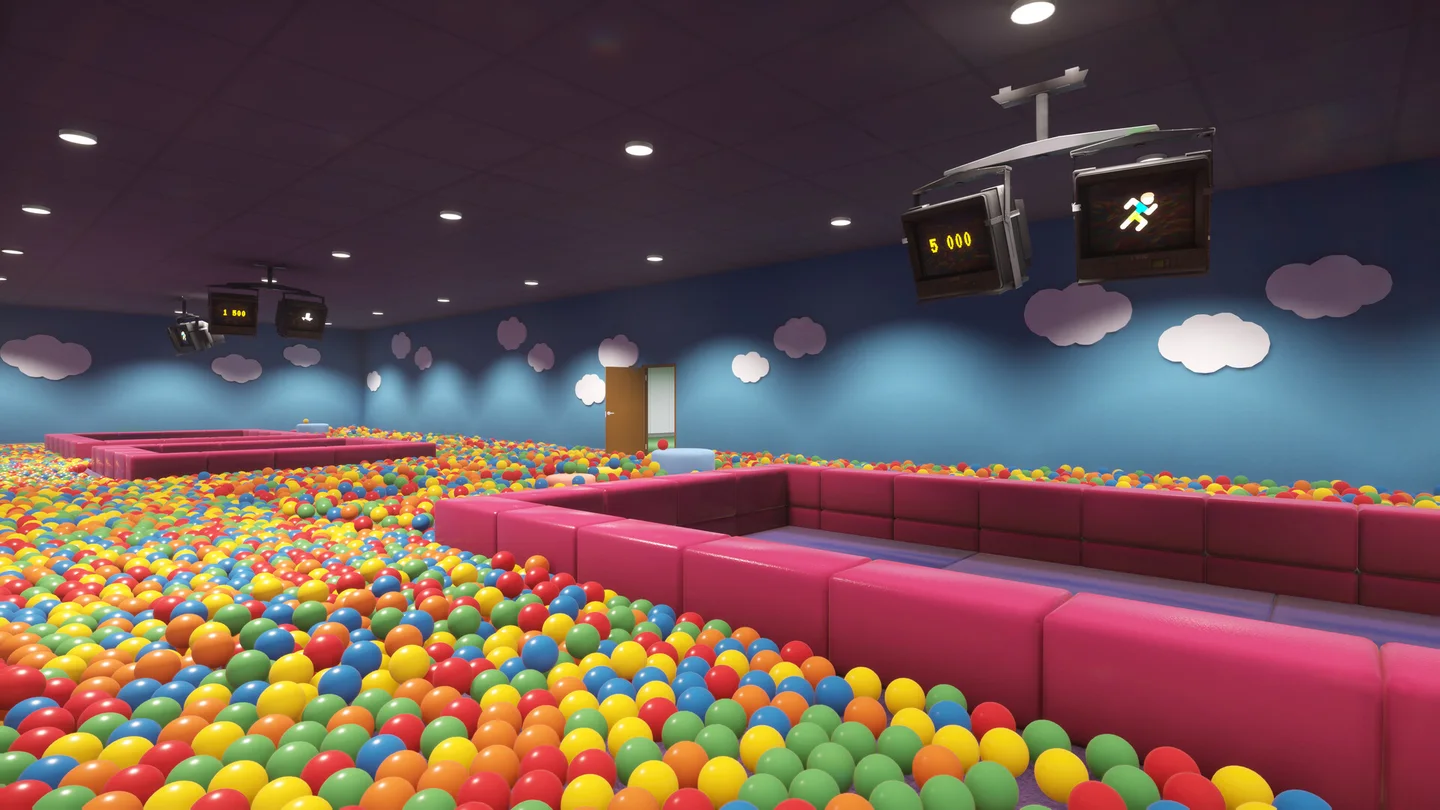
Look at a pool and left-click, using the same button as pickup. The developer confirmed that action in a reply to a stuck player and said there is no separate drop key. The deposit guide explains why a free-drop or throw command should not be assumed.
This guide covers Playrooms by Two Pixels UG, Steam App 5037510, and its separate demo, App 5246850. Start with the official demo installation guide if you have not installed it.
Which controls and abilities are available immediately?
The October 13 developer update adds E interaction for doors, collection pits, dispensing points and equipment while retaining left-click. Tool icons show their assigned keys. Sprint and crouch have unlock permissions, with the key announced when the permission is granted; a listed binding does not mean the ability is already unlocked.
| Task | Confirmed instruction |
|---|---|
| Deposit carried balls | Look at a pool and left-click |
| Interact with doors, pits and equipment | E is an added option; left-click remains valid |
| Select a tool | Follow the displayed tool key |
| Sprint or crouch | Check the granted permission and its prompt |
The official interaction update supports these distinctions. See sprint, crouch and stamina before treating a locked movement action as a broken keyboard.
What should you read before spending on upgrades?
The coffee machine separates Active Effects, After Upgrade and Later Upgrades. Compare those labels so a later benefit is not mistaken for the effect of the purchase in front of you. The same update expresses Nimble Hands in balls per second and coffee duration in clock format.
Use the upgrade and coffee reference for the documented interface details. When you reach the Waiting Room suction vent, the broom guide explains the developer’s intended tool; it does not assume that the demo’s slow economy is a missing control.
What happens when a shift ends?
The store tells players to stay in the light when the lights shut down. Choose the difficulty mode that matches the consequences you want: the developer confirms a Cozy mode without monsters. Read the mode’s wording before starting, especially when considering Hardcore.
For shared-PC play, use a distinct slot: the developer confirms three save slots and one player at a time. A technical freeze during lights-out is a different issue; use the official lighting-stall fix if the game stops responding.
Sources checked November 2, 2026. Mechanics are explained from developer sources; no personal playthrough is claimed.
Related Articles
guides
Playrooms Broom Guide: Getting Balls to the Waiting Room Vent
Find out why the Waiting Room suction point needs a broom, what the developer confirms, and which demo limitations remain unresolved.
guides
Playrooms Difficulty Modes: Cozy, Normal and Hardcore
Compare Cozy, Normal and Hardcore using the official mode screen, including monsters, day restarts and Hardcore save deletion.
guides
How to Drop Balls in Playrooms: Deposit Controls Explained
Put carried balls into a pool with the developer-confirmed control, and learn why Playrooms has no separate drop key.
Was this helpful?
Thanks for the feedback!